Your rating
Reactions
Promos
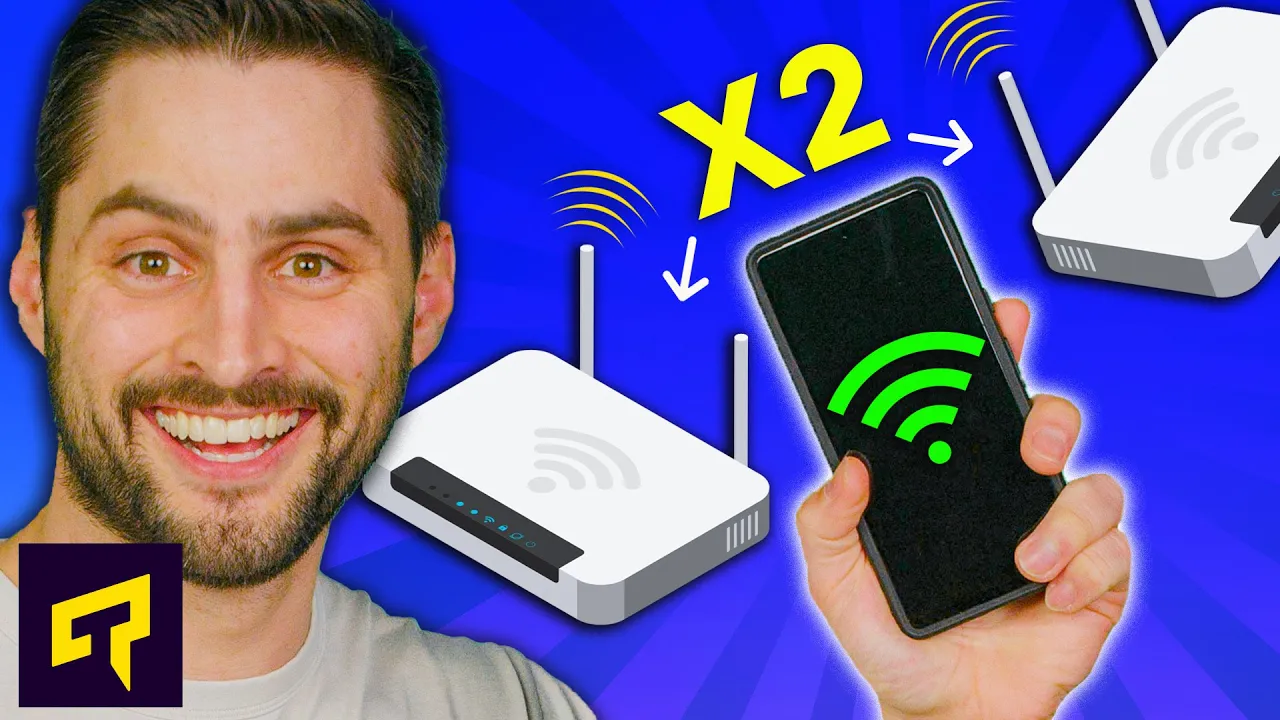
Set up your own server today and get a $100 60-day credit at: linode.com How can you add a second wireless router - technically an access point - to your home network, and what are the benefits and drawbacks? Leave a reply with your requests for future episodes. ► GET MERCH: lttstore.com ► LTX 2023 TICKETS AVAILABLE NOW: lmg.gg ► GET EXCLUSIVE CONTENT ON FLOATPLANE: lmg.gg ► SPONSORS, AFFILIATES, AND PARTNERS: lmg.gg FOLLOW US ELSEWHERE --------------------------------------------------- Twitter: twitter.com Facebook: @LinusTech Instagram: @linustech TikTok: @linustech Twitch: twitch.tv
AI Overview
In this tech briefing, the host explains how you can extend Wi‑Fi coverage by adding a second router, effectively turning it into an access point, and what caveats come with that approach. The video opens by clarifying the role of a router beyond just emitting a wireless signal: it also routes traffic between your home network and the internet, using DHCP to assign private IP addresses. The host emphasizes that typically only one device on the network should handle DHCP to avoid IP address conflicts, and he provides a concrete example using a common home subnet (like 192.168.1.x) and a suggested secondary router address such as 192.168.1.2. The walkthrough then shows practical steps: connect the second router to the primary one with an Ethernet cable, assign a unique IP to the second router outside the main DHCP range, reboot, and disable DHCP on the second router so only the primary router manages IPs. The segment then covers switching the second router into AP mode so it mainly emits Wi‑Fi while the main router handles routing, and tying both devices together through their LAN ports (not the WAN port) while using the same SSID and password to enable seamless handoffs. The host also discusses placement to minimize signal overlap and avoid dead zones, noting that devices may stubbornly stick to a weaker AP and that troubleshooting often requires some trial and error. Finally, the video concludes with a nod to easier mesh networking kits for broader coverage, while reassuring viewers that the AP method is a viable option for repurposing a spare router, and invites engagement for future topics. The segment ends with a reminder to like, subscribe, and leave topic requests for upcoming episodes.
Topics · networking · home networking · technology
Questions answered
- What is AP mode and how does it differ from normal router mode in the context of adding a second router?
- AP mode disables the secondary router's routing and DHCP responsibilities, turning it into a wireless access point that only emits Wi‑Fi while the primary router handles IP assignment and traffic routing.
- Why should the second router use a static IP outside the main DHCP range?
- To prevent IP address conflicts where two devices could be assigned the same private IP, which can cause communication errors. Choosing an IP like 192.168.1.2 when the primary is 192.168.1.1 keeps the networks distinct.
- Can I still use the WAN port on the second router in AP mode?
- In AP mode most users connect via LAN ports and avoid the WAN port for proper layer 2 bridging, but exact behavior can vary by model; consult your router manual to confirm whether the WAN port should be left unused or treated as a LAN port in AP mode.


