Your rating
Reactions
Promos
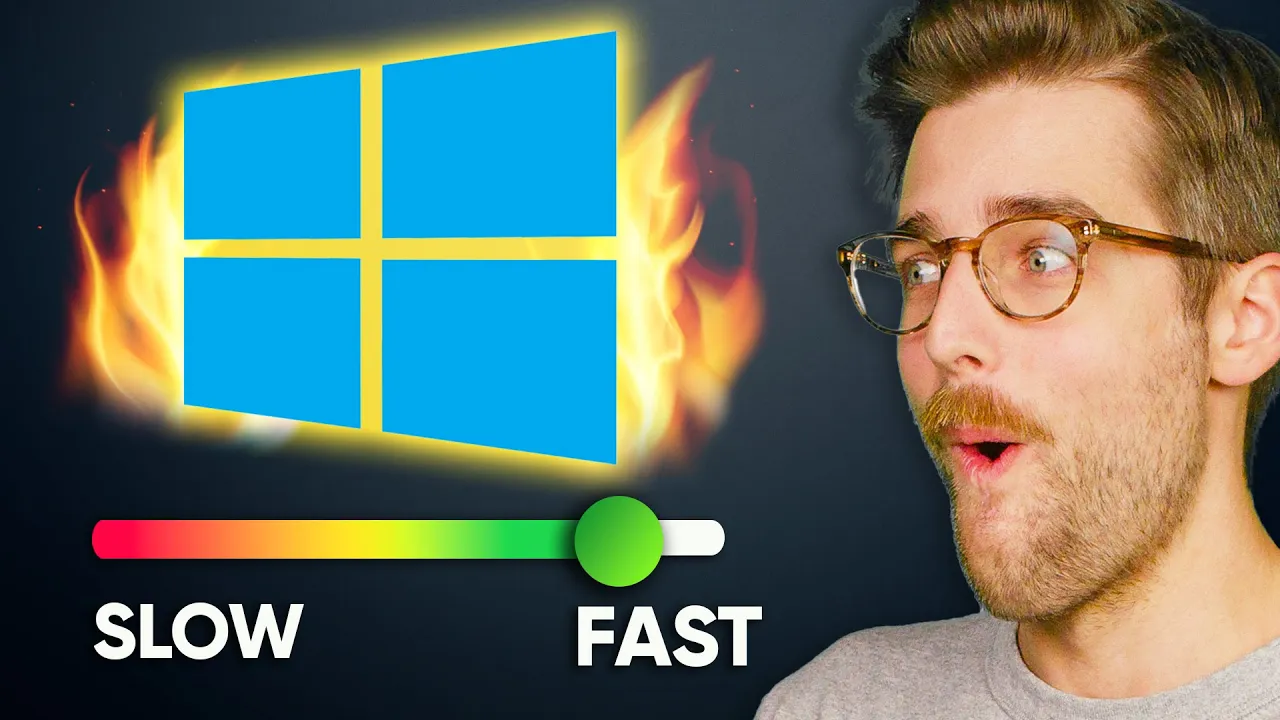
Print products with your own designs! Visit VistaPrint at lmg.gg What does the Windows performance power slider actually do? Leave a reply with your requests for future episodes. ► GET MERCH: lttstore.com ► LTX 2023 TICKETS AVAILABLE NOW: lmg.gg ► GET EXCLUSIVE CONTENT ON FLOATPLANE: lmg.gg ► SPONSORS, AFFILIATES, AND PARTNERS: lmg.gg FOLLOW US ELSEWHERE --------------------------------------------------- Twitter: twitter.com Facebook: @LinusTech Instagram: @linustech TikTok: @linustech Twitch: twitch.tv
AI Overview
The video introduces the Windows performance power slider, a built-in control that lets users trade off performance and power savings directly from the taskbar, a feature that first appeared in Windows 10. It explains the four position options: battery saver, better battery, better performance (the default), and best performance. The speaker clarifies that this slider is not a precise analog control and that its impact is focused on performance relevant factors, such as how background processes are throttled, rather than peripheral aspects like display timeout. The explanation covers why some users may not see the slider, noting that legacy power plans in Control Panel can override what appears in Settings, and that some devices only show the slider when running on battery. The video emphasizes that the slider modifies behavior rather than universal system settings, and that the ideal choice depends on hardware, use case, and whether the laptop is plugged in versus on battery. The host also cautions that maximizing performance can increase power consumption and reduce battery life, and concludes by encouraging viewers to experiment with different settings to find a personal balance between responsiveness and energy savings. Overall, the video provides practical guidance for users seeking to squeeze extra responsiveness from Windows without investing in new hardware, while acknowledging variations across manufacturers and devices.
Topics · technology · operating-systems · computer-hardware · performance-optimization


