Kingston DDR3 RAM Memory Installation Guide Frequency Timings Voltage Settings Linus Tech Tips
Your rating
Reactions
Description
Today I do a quick tutorial on how to install your memory, then set it up either manually or by using XMP profiles to ensure it's running at optimal speed, timings, and voltage.
AI Overview
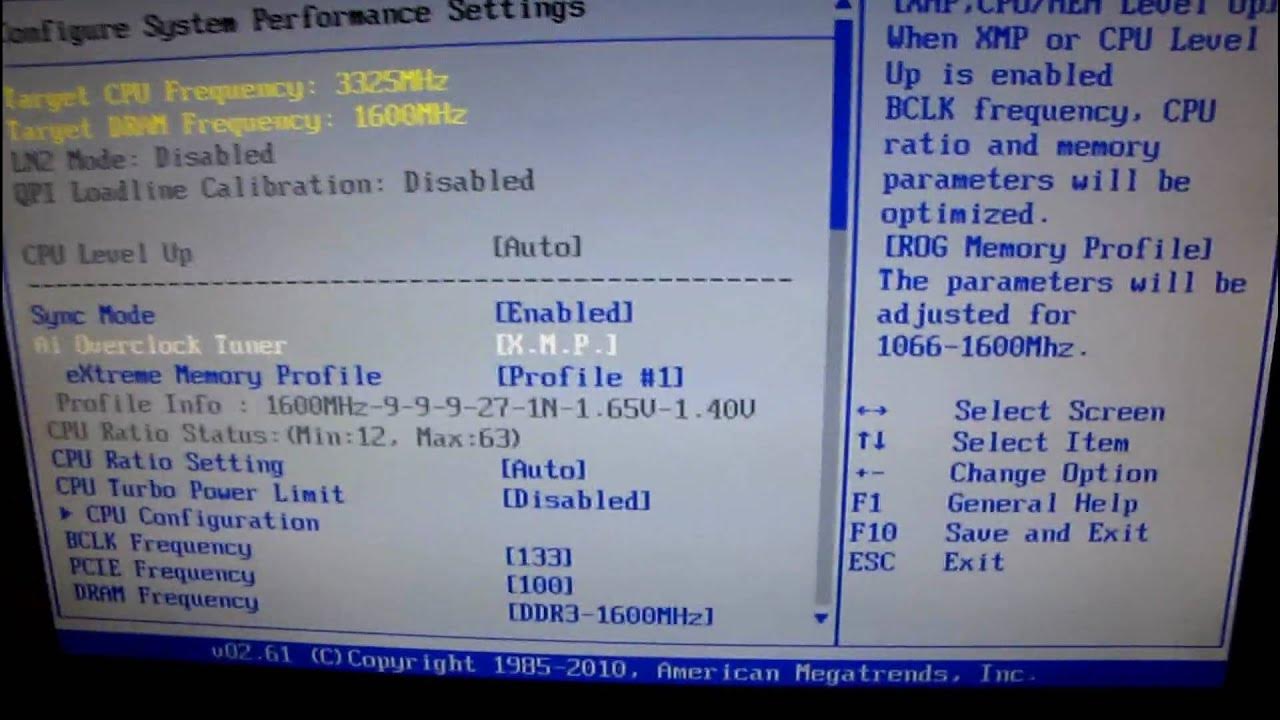
This video provides a concise, practical walkthrough for installing Kingston DDR3 RAM and configuring its settings for optimal performance. The host begins with a safety reminder about grounding yourself before handling components and proceeds to show the physical installation on a Rampage 3 Extreme motherboard, noting how clips on this board differ from typical memory slots. After the hardware goes in, the guide shifts to software configuration, explaining that most motherboards boot with safe defaults that may not reflect the RAM’s true capabilities. The instructor demonstrates how to adjust the memory frequency to 1600 MHz, discusses voltage considerations, and emphasizes the importance of checking exact specifications against the part number on Kingston’s site to confirm proper timings, especially the CL value. He then explores different BIOS options for memory setup, highlighting the XMP profile, manual timing configuration, and the trade-offs between frequency, latency, and voltage. The video closes with a note that a future guide will cover RAM overclocking in more depth, and a reminder of Kingston’s involvement and a call to subscribe for a chance to win the RAM kit. Overall, the video blends hands-on installation with practical BIOS navigation to help viewers get RAM running at its rated specifications and explore safe, incremental performance tweaks.
Topics · technology · computer_hardware · pc_building · ram_memory
Questions answered
- What is the first step in RAM installation according to the guide?
- Ground yourself by touching a plugged-in power supply to discharge static before handling memory modules.
- How does the video suggest verifying RAM specifications before applying settings?
- Check the part number on the RAM packaging and look up the exact frequency, timings, and voltage on Kingston's website.
- What BIOS option is recommended for automatic RAM configuration in the video?
- Use the XMP profile to let the motherboard apply the recommended frequency, timings, and voltage.