HomeFeatured videos and new releasesBrowseLatest videos, playlists, and topicsCreatorsYouTube creators and their videosNewsHeadlines from publishers' feedsHistoryResume recently watched videos
Theme
Language
AccountAccountSign in
PrivacyCookiesTermsAboutContactRemovalMethodology
Account
Sign in
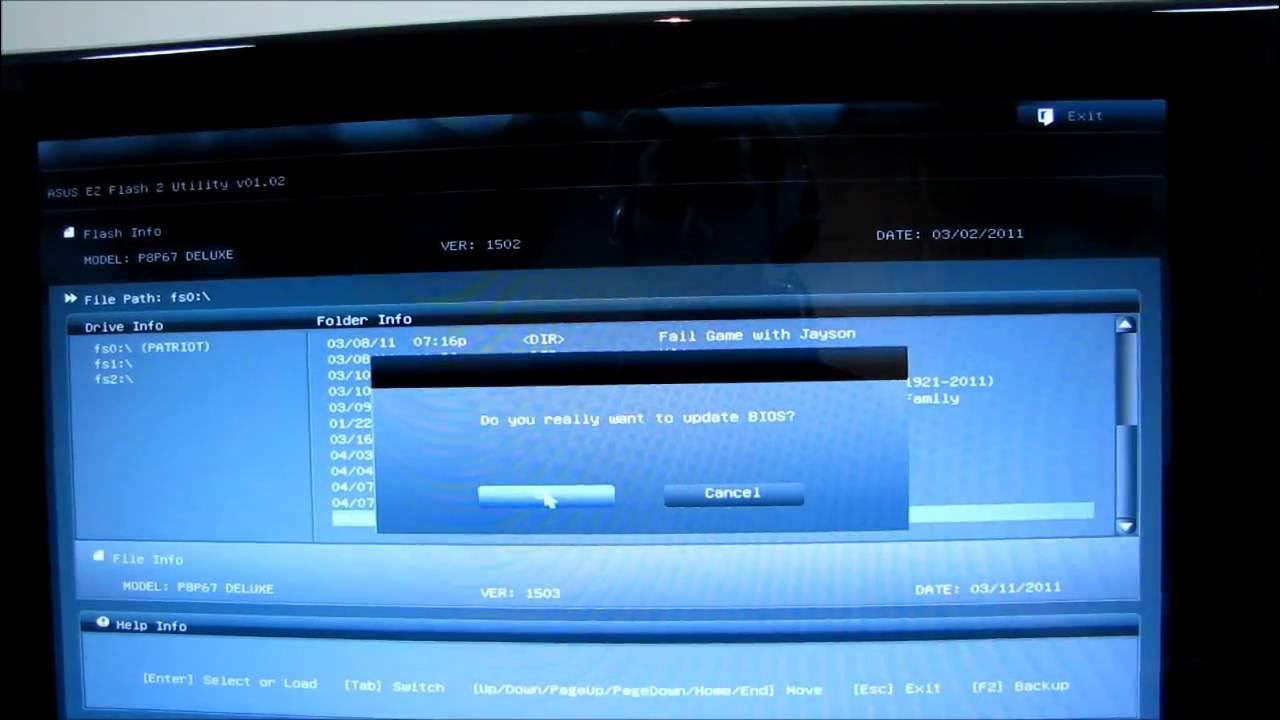
How to Flash an ASUS Motherboard BIOS Linus Tech Tips
Video · 0:00

How to Flash an ASUS Motherboard BIOS Linus Tech Tips

Linus Tech Tips@LinusTechTips•162.8K views•Apr 28, 2011•4:49

Your rating

Rate this video from 1 to 5

Reactions

Reactions to this video

Share

WhatsAppXReddit
Source
YT
Views
162.8K
Subscribers
16.9M
vs. channel typical
0.3x
Likes per 100
0.9
Comments
330

Description

This is the second in my series of videos on updating the BIOS or firmware of a motherboard.

Start

AI Overview

The video walks through flashing an ASUS motherboard BIOS in a straightforward, step by step process. It starts with navigating to the ASUS support website, using the product name (in this case a P67 Deluxe motherboard) to locate the BIOS downloads, and selecting the appropriate BIOS update file. The host demonstrates downloading the ROM file and copying it to the root of a USB flash drive, noting that the board uses an EFI BIOS which requires larger BIOS files for the graphical interface. After rebooting the system and entering the BIOS, the guide shows using the Advanced mode and the Easy Flash 2 utility to select and read the downloaded BIOS file from the USB drive, then initiating the flash. The presenter emphasizes precautions such as running at stock speeds to avoid instability during flashing and using a UPS or reliable power source to prevent power loss mid-flash, which could brick the motherboard. Upon completion, the video covers how to verify the BIOS version in Windows using CPU-Z and the motherboard’s main page, and it concludes with a reminder that flash logs are often vague, suggesting updates may improve functionality beyond what the changelog explicitly states. Finally, the host encourages viewers to subscribe for more hardware content, including unboxings and reviews, while noting that BIOS updates are generally recommended only when issues are present but can be beneficial for compatibility or new features.

Topics · technology · how-to · computers

More from Linus Tech Tips

  • The $40 GTA 6 Gaming Setup is MUCH Better Than You'd Think
    18:45

    The $40 GTA 6 Gaming Setup is MUCH Better Than You'd Think

    534K views•2 days ago
  • My Investment is on SALE
    1:42

    My Investment is on SALE

    305K views•2 days ago
  • You Were Right About my Braces
    15:09

    You Were Right About my Braces

    582.4K views•3 days ago
  • 3 DJI M5T Features That Work Together
    0:55

    3 DJI M5T Features That Work Together

    39K views•3 days ago

Related videos

  • What Happens If You Don't Shut Down Your Computer Properly?
    5:49

    What Happens If You Don't Shut Down Your Computer Properly?

    4.5M views•9 years ago
  • Install an Intel LGA1150 or LGA1155 CPU Processor as Fast As Possible
    3:22

    Install an Intel LGA1150 or LGA1155 CPU Processor as Fast As Possible

    1.6M views•14 years ago
  • How To Fix A Bricked Motherboard
    4:20

    How To Fix A Bricked Motherboard

    645.5K views•5 years ago
  • HD Laptop Buying Guide
    7:43

    HD Laptop Buying Guide

    33.7K views•18 years ago
  • Oh no a dead mouse!
    0:43

    Oh no a dead mouse!

    12M views•5 years ago
  • Apple M1 Mac Review: Time to Recalibrate!
    14:30

    Apple M1 Mac Review: Time to Recalibrate!

    9.3M views•6 years ago